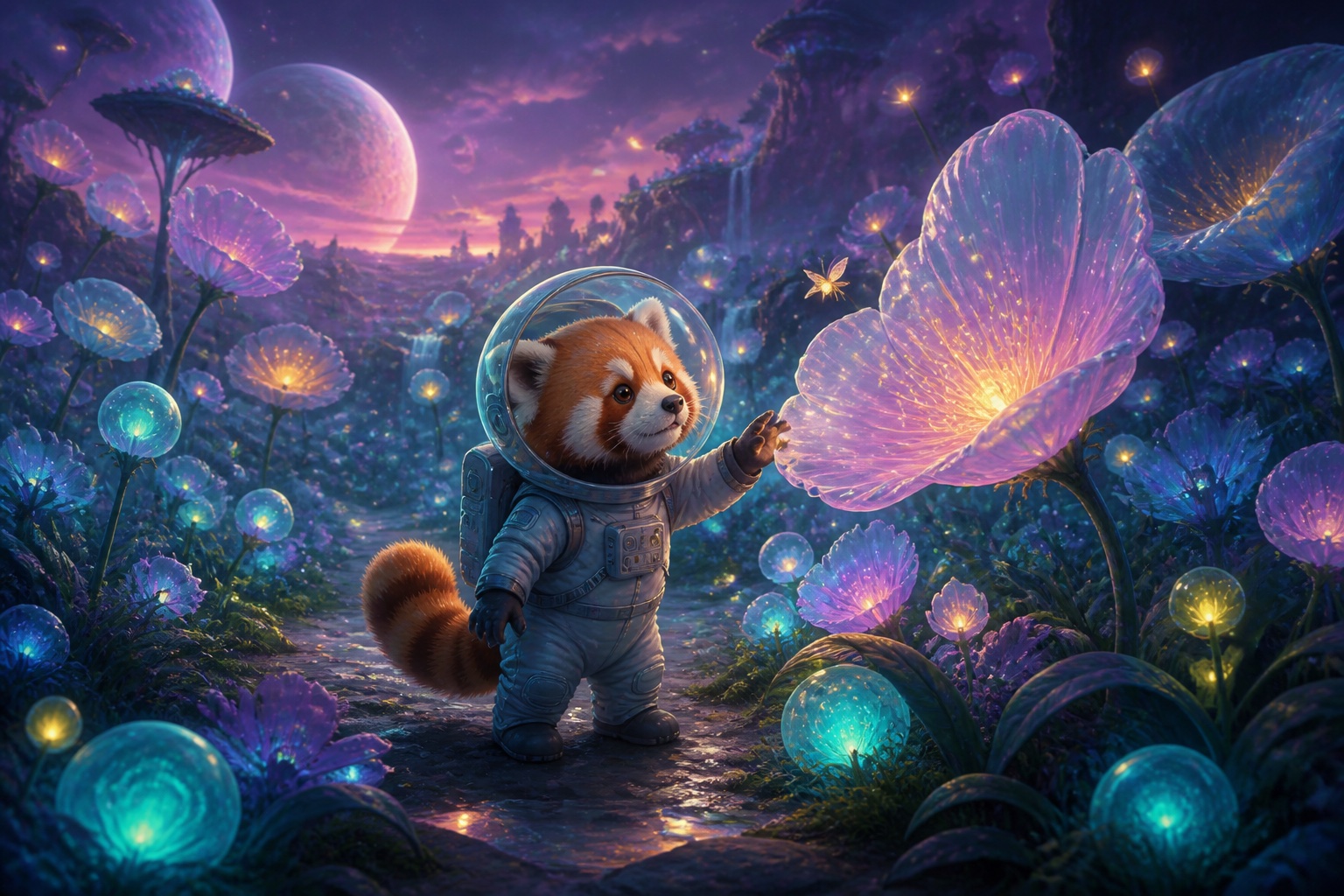
Free AI Image Generator for YouTube Thumbnails

Use this AI image generator to create a click-ready 16:9 YouTube thumbnail from text, an existing thumbnail, or your own reference images. Describe the subject, composition, colors, and text you want, then generate a thumbnail ready to download and test.

Upload reference images(0/3)
Output format16:9 · YouTube thumbnail
Cost25 credits

Sign in required · No design skills needed

Thumbnail preview

Example AI-generated YouTube thumbnail

I found anew world

How to Use Our AI Image Generator for YouTube Thumbnails

Use the AI image generator for YouTube thumbnails in three simple steps. Start with a clear prompt, add references when you want the design to follow a face, product, composition, or channel style, then generate a downloadable 16:9 result.

1
Describe your thumbnail

Explain the video topic, main subject, facial expression or action, background, colors, composition, and any short headline you want to appear. A prompt is the only required input.

2
Add references when helpful

Paste a YouTube video URL or upload up to three images when you want to preserve a person, product, visual layout, color palette, or recognizable channel style.

3
Generate, compare, and download

Generate a 16:9 thumbnail, review the result at full size, and create another variation if you want to test a different headline, expression, background, or composition.

AI Image Generator for YouTube Thumbnails: Examples

Use the AI image generator for YouTube thumbnails with a prompt alone, an existing YouTube thumbnail, or your own uploaded photos. These original examples show how each input changes the final composition.

Prompt only

Create a YouTube thumbnail from text

No image is required. Describe the video idea, subject, setting, colors, and headline, then let the generator build the complete composition.

Example prompt

An excited maker holding a friendly robot in a blue-and-orange workshop, with large text: I BUILT A ROBOT.

AI-generated YouTube thumbnail showing a creator holding a small robot with the words I Built a Robot
AI-generated thumbnail
Reference thumbnail

Keep your channel style consistent

Upload a thumbnail from your own channel as a visual reference, then describe the topic of the next video. The new thumbnail can follow the same palette and layout without repeating the old content.

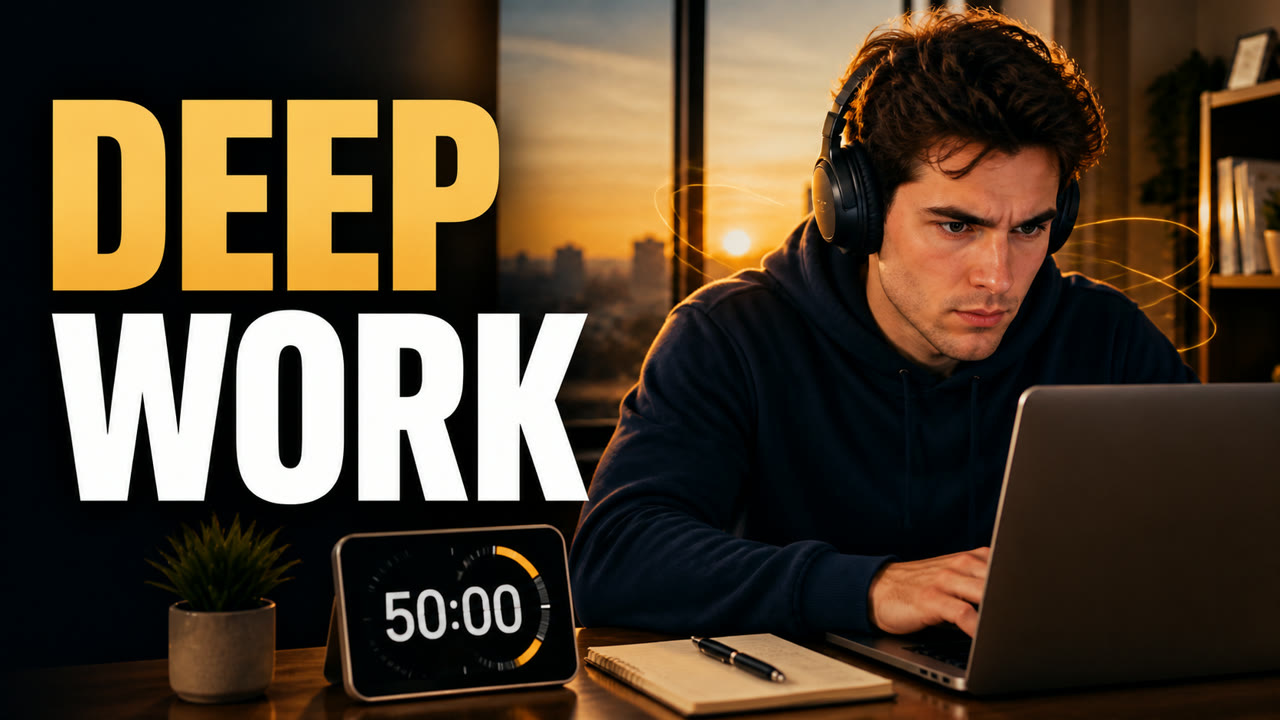
Example prompt: Follow the warm sunrise palette and bold left-side headline. Create a new thumbnail for a Deep Work video with the same creator wearing headphones.
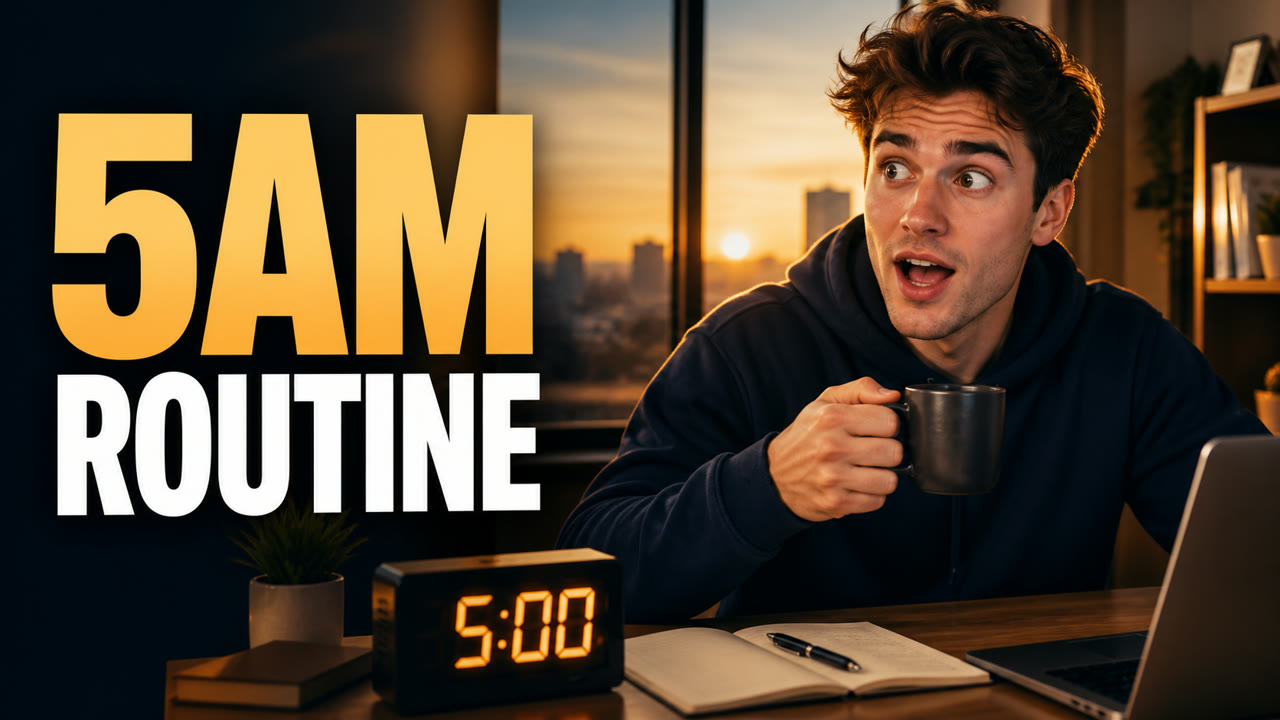
Reference YouTube thumbnail for a fictional 5 AM routine video
Reference input
New AI-generated Deep Work YouTube thumbnail matching the reference channel style
AI-generated thumbnail
Uploaded image

Build a thumbnail around your photo

Upload a portrait or product photo and explain how it should be used. The generator can place it into a new scene and compose the rest of the thumbnail around it.

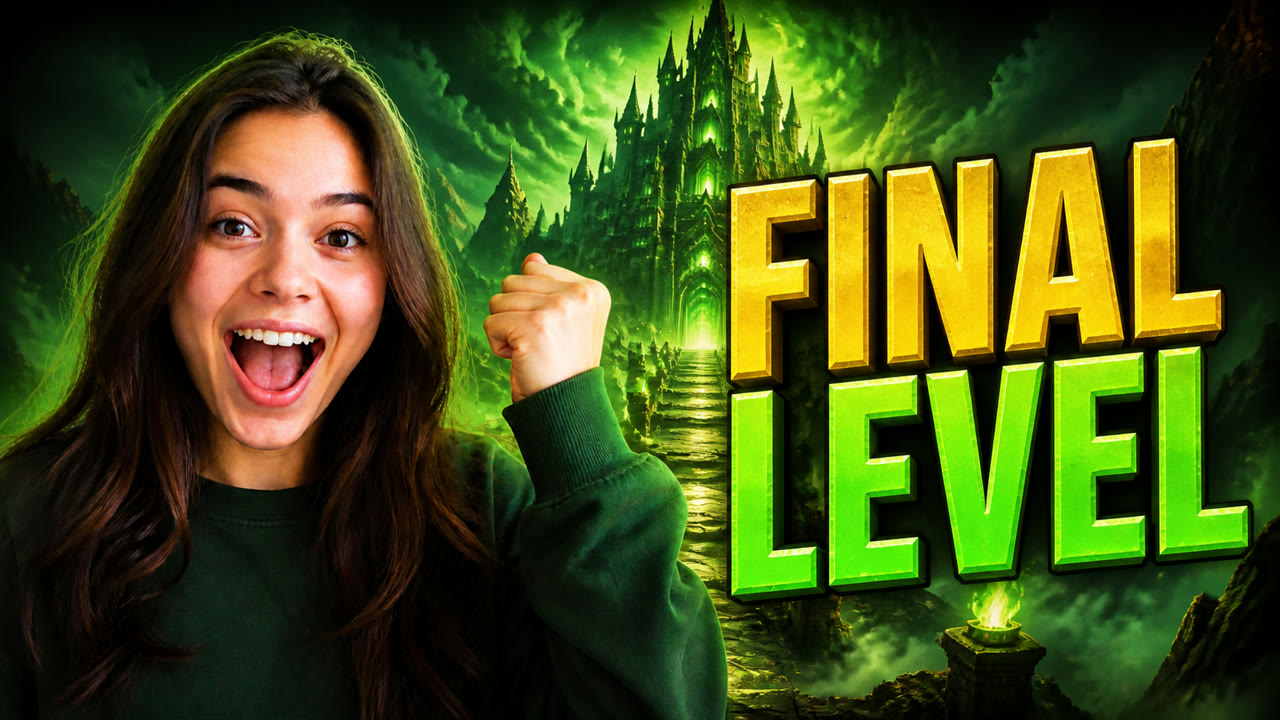
Example prompt: Keep my face, expression, green sweatshirt, and raised-fist pose. Put me in a dramatic green fantasy game scene with large text: FINAL LEVEL.
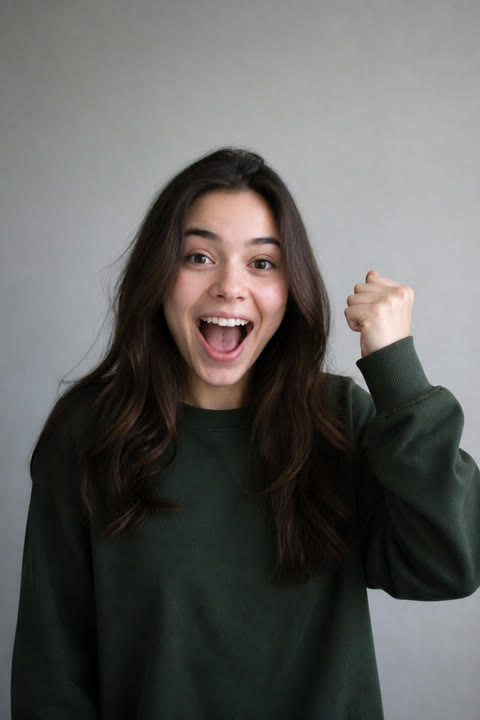
Portrait photo uploaded as a reference for a YouTube thumbnail
Reference input
AI-generated Final Level gaming thumbnail created from the uploaded portrait
AI-generated thumbnail

YouTube Thumbnail Ideas for Every Video

Change the prompt and references to match the type of video you are publishing.

Gaming videos

Combine a creator reaction, game-inspired scenery, and a short, readable headline.

Tutorials and explainers

Show the topic, the result, or the key problem with a simple visual hierarchy.

Product reviews

Upload a product image and place it beside the creator, verdict, or comparison idea.

Vlogs and reactions

Turn a portrait into a clear emotional focal point with a setting that explains the story.

How to Write Better YouTube Thumbnail Prompts

A useful prompt gives the generator a clear visual brief instead of a broad topic. Describe the elements below in ordinary language, and include only the details that matter to the video. You do not need design terminology or a rigid prompt formula.

Main subject

Name the person, product, object, or result viewers should notice first. If a person appears, describe their clothing or recognizable features only when those details matter to the video.

Action and expression

Explain what the subject is doing and what emotion should be immediately readable. A surprised reaction, confident pose, or clear before-and-after relationship can communicate the story without extra text.

Composition

Say where the main elements should sit, such as the creator on the left and the product on the right. Leave uncluttered space for a headline and keep the focal point readable at mobile size.

Background and color

Describe the setting, lighting, contrast, and color direction. Use a background that explains the context of the video while remaining simpler than the main subject.

Short thumbnail text

Put the exact words in quotation marks and keep the message brief. A few large words are easier to scan than a complete sentence, especially when the thumbnail is viewed on a phone.

Reference instructions

When you import or upload an image, state what should remain recognizable and what may change. Separate requests such as keep my face, reuse the warm palette, or replace the room with a studio.

Example of a specific thumbnail prompt

An excited creator leaning toward the camera, a glowing fantasy boss in the background, strong green lighting, the creator on the left, and large text reading “FINAL LEVEL.” Keep the face and green sweatshirt from my uploaded portrait.

This prompt identifies the subject, emotion, setting, color, layout, exact headline, and the part of the uploaded photo that should be preserved. You can use the same structure for a product review, tutorial, vlog, or comparison without copying the wording.

Use Reference Thumbnails and Test Variations

A reference thumbnail helps the generator understand an existing visual direction. Paste a public YouTube video URL to import its current thumbnail, or upload an image from your own channel. Then describe the new video topic and the elements you want to preserve, such as the color palette, subject placement, headline position, lighting, or overall energy.

Treat the imported image as visual guidance rather than a request for an identical copy. Ask for an original scene and headline that communicate your new video idea. This makes the reference useful for maintaining a recognizable channel style while keeping each thumbnail specific to its own story.

You can also generate controlled variations for thumbnail testing. Change one important element at a time so the versions remain easy to compare. After publishing, use the performance data available in YouTube Studio to decide which creative direction works better for your audience rather than relying only on personal preference.

Test the headline

Keep the image direction consistent and compare a direct result-focused headline with a curiosity-led alternative. Use short wording that remains readable at small sizes.

Test the expression

Keep the topic and layout fixed while changing the creator’s reaction, pose, or eye line. This isolates how the human focal point affects the thumbnail.

Test the composition

Compare subject size, placement, background simplicity, or the amount of negative space. Avoid changing every element at once, or the result will be difficult to learn from.

Use only photos, thumbnails, logos, and other reference material that you own or have permission to use. Reference images should guide an original result, not reproduce someone else’s protected design.

AI YouTube Thumbnail Generator FAQ

Quick answers about inputs, references, image size, and free credits.

Create Your Next YouTube Thumbnail with AI

Describe the video, add an optional reference, and generate a thumbnail in the standard 16:9 YouTube format.

Start Creating